Showing posts with label Citrix. Show all posts

Where’s my RDS Profile gone?

For anyone out there building a new RDS or Citrix environment based on Windows Server 2016, there is something you should know. Microsoft has decided to change some functionality, specifically for RDS.

In the olden days, the main way to configure and control the user environment was via the user profile and the home Directory. Using these two pieces of information, you could control all settings and where they lived. When Terminal Services, Remote Desktop Services and Citrix XenApp (previously, Presentation Server, and MetaFrame) started to take off, the need arose for a separate location for these items. The main reason simple incompatibility between the desktop operating system profile and the server one.

Microsoft realized this and somewhere along the way added in a new tab for all user accounts in AD that allowed you to specify an alternate Profile and Home Directory location. This tab was used for years by many an admin and served its purpose well. Over the past few years, Microsoft introduced the ability to set these settings via Group Policy, which is much more convenient and allows a lot more flexibility as well.

Still in all, if you are an old timer and are still doing things at the user level, watch out, Windows 2016 ignores our trusty Remote Desktop Services Profile tab, sad I know! For some reason, Microsoft has decided not to query this tab anymore when users login. Now for most of you this will not mean much, but for those that are using this tab, this could have catastrophic repercussions. Everything from the desktop look and feel to roaming profiles suddenly not working and all users winding up with local profiles.

If you fall into this category, fear not! Microsoft has not completely abandoned you, you can actually turn this functionality back on! A simple registry entry will tell Windows to query this tab just like old times. Simple add in this registry value:

HKEY_LOCAL_MACHINE\SYSTEM\CurrentControlSet\Control\Terminal Server\WinStations\RDP-tcp\
Name: fQueryUserConfigFromDC
Type: Reg_DWORD
Value: 1 (Decimal)

Once this value is back in place, the following will take place during each user logon:

  • Query the Terminal Services registry key for the fQueryUserConfigFromDC value.
  • If the value is found and it is set to 1, contact the DC to get the user configuration information.

With the system now contacting the DC for the RDS specific properties, the following value will once again come alive:

  • Profile Path
  • Home Folder
  • Deny Logon to the RDSH server

For more information, see the Microsoft article here:

https://support.microsoft.com/en-us/help/3200967/changes-to-remote-connection-manager-in-windows-server

Enlightened Data Transport: What you need to know

Enlightened Data Transport (EDT).

EDT improves HDX/ICA performance across WAN links, Internet, etc. In 7.12, EDT was Tech Preview. In 7.13 and above, EDT is officially supported..

EDT has several requirements:

·       UDP 1494 and UDP 2598 must be opened to every VDA, including from the NetScaler SNIP, if you’re using NetScaler Gateway.

·       VDA 7.13 or newer

·       Receiver for Windows must be 4.7 or newer.

·       Receiver for Mac must be 12.5 or newer.

·       StoreFront must be 3.9 or newer.

NetScaler Gateway 11.1 build 51 and newer supports EDT (DTLS). The following NetScaler features are not supported with EDT at this time:

·       NetScaler SOCKS Proxy

·       HDX Insight

·       Gateway Multi-stream

·       Gateway Double-hop, etc.

EDT is disabled by default, you need to set a policy to enable it, see this article: https://support.citrix.com/article/CTX220732.


Confirmation: Once you have it enabled, log into a session and run the command CTXSESSION –v, if you see the connection is going over UDP, you are good to go.

CONNECTING TO CITRIX FROM APPLE PRODUCTS - NEW UPGRADE NEEDS MORE OF AN UNDERSTANDING

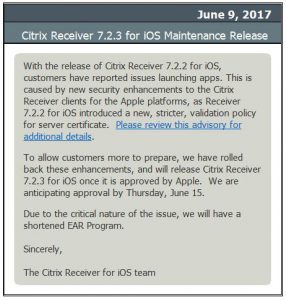
Citrix recently released version of Citrix Receiver for iOS client v7.2.2, which introduced requirements for stricter validation of SSL Certificates. Due to a significant number of complications reported due to improper certificate chaining, SSL security, and certification authority root and intermediate certificate problems, Citrix has responded and will be releasing a maintenance release, 7.2.3. This updated version will revert the stricter validation requirements, in an effort for customers to have more time to remediate client environments. This new version is expected to launch in the App Store on or before June 15th. Please see the announcement from Citrix below.

Should an immediate fix be required, users can search the Apple App Store for the Citrix “R1” Receiver release, which will install a second App, based on a previous version of Citrix Receiver for iOS – 6.1.5. Of course, the preferred option is still to upgrade the environment to remove the weaker certificates and meet these proper, stricter validation requirements.

CITRIX CONNECTION QUALITY INDICATOR

Hello fellow Citrix Admins,

If you are involved in supporting a Citrix environment, you know that one of the complaints you are sure to hear at some point is that “Citrix is slow”. Meanwhile, no one else seems to be having an issue. In many cases, the user might be connecting from some far-flung place on the globe and the connection speed and quality is less than optimal. The problem is trying to prove to the user that there is a line issue. Enter the Citrix Connection Quality Indicator, a simple Citrix utility that sits in the user’s system tray and provides a nice indicator of the users connection speed, like this:

This tool gives the user instant feedback when there is a degradation in performance to the point that the user’s experience is impacted. This will help the user understand that the performance issue they are experiencing might be temporary and is being caused by their local Internet connection, not the server. This should reduce the amount of calls to the helpdesk for connectivity issues.

For the curious user that is interested in seeing more information, or to assist with further troubleshooting by the Help Desk, a simple click on the icon will provide more details.

In addition, critical messages, errors and warnings are all logged to the event log as well as a text file, so you have another utility in your toolbelt for post-complaint analysis!

To download this tool, head on over to the Citrix knowledgebase and grab your copy here: https://support.citrix.com/article/CTX220774

DIRECTOR ALERTS! CONFIGURING FOR OFFICE 365

Figured this would be an appropriate time to send this email, with all of the snow out there in the North East, many administrators may be working remotely. Having a process looking in on the health of your Citrix environment and reporting if any issues arise would be just wonderful! Well fear not, Citrix has thought of this already and with the latest version of Director, v7.7, they have added in the capability to create triggers to alert you to any potential issues as they come up. Of course our systems don’t have much use for alerts as they don’t have any issues! Smile
After you install (or upgrade) your Director and log in, you will notice a new option in the title bar called Alerts:
clip_image002
Clicking on this new option will take you to the Alerts area where you can set up all sorts of triggers, I will leave this to you to sort out. What I wanted to discuss is how to get those alerts to be emailed out in an Office 365 world as it might not be so evident.
Click on the Alerts option and then the Email Server Configuration tab.
clip_image003
This will bring you to the email relay configuration. From this screen you have several pieces of information that you will need to provide. If you are in an Office 365 environment, you might have already configured other devices to send email out. There are two main ways to accomplish this, 1) via an onsite relay and 2) via direct authentication. The second choice is the more preferably one according to Microsoft. There are many articles out there already on how to set up a SMTP relay, so we I will focus on the second option.
Back to the tab, ok, so right off the bat, there is a mistake in the interface, so for the first choice, Protocol, if you pull down the drop-down, you will see the following options:
clip_image005
Office 365 requires SMTP-TLS, but Director seems to only have an option for a *new* protocol called SMTP-TSL! Ok, maybe not a big deal, but it made me take a second look, select this option, even if it feels wrong, don’t worry the option doesn’t stay wrong for long.
For Office 365 use the following choices:
Host: smtp.office365.com Port: 587 Sender Email:
Does SMTP server require authentication: Yes User Name:
Password:
You should have noticed that as soon as you selected the SMTP-TSL option, it immediately corrects itself and changes to SMTP-TLS. As for the other settings, namely the email address, most places have an email account that they use to send alerts for other things already, so this same account can be utilized here. You can use the same email address to be the sender as the one to do the sending. If you choose to have the alerts come from one email address and authenticate using a different one, make sure that you assign the correct send on behalf of permissions to allow the account to send properly.
That’s it, once this is completed, click on Save and feel free to send a test message. As soon as you click the Send Test Message button it will immediately ask you to enter in an address to send the message to. If all is ok, you should get something that looks similar to this:
clip_image006
If you don’t get the email, you might want to make sure that you don’t have a firewall blocking the port. Once you receive the email, you are good to go and can click through the other tabs to set up all of the alerts you are interested in being made aware of!

Aaron

PROVISIONING SERVER AND FIREWALLS

Provisioning Server is here to stay and I think we can all agree that this is a great thing. Recently while installing a new environment I started to run into a few issues which I immediately realized was a Firewall issue. The system was configured using Windows 2008, so I immediately went to look at the configuration and like a good consultant was about to turn it off, when the client says to me, we use the Windows Firewall and it must stay on! The nerve, right? I know, I agree!

In any case, I now had to actually look into what needed to be open to make this work which doesn’t sound too difficult, look up the Citrix Doc, get the port numbers, create a rule and I’m done. Problem is that depending on what version of Provisioning Server you are using determines which ports you need to open as they changed it in 5.6 and I found references to different ports in three different documents from Citrix. In the end, there was no single document that had all of the ports listed.

Here is a nice document from Citrix (http://support.citrix.com/servlet/KbServlet/download/2389-102-648658/CitrixPorts_by_Port_0333.pdf) on ports used by Citrix Technologies, sounds pretty complete, but is definitely missing some, like 6969, which is listed on this page: http://support.citrix.com/article/CTX125744 and is used for the TSB; anyone care to guess what that one is? (no peeking!)

In order to save everyone from what I went through tracking this down, I present to you a script which when run will modify the Provisioning Server firewall with all of the ports necessary to make Provisioning Server work. It uses the NETSH (A very powerful command indeed) to add in the rules and even includes the description pulled from the various Citrix documents.

Enjoy and feel free to comment.

Aaron

@Echo Off

ECHO.
ECHO This script will modify the Firewall with rules necessary for proper Provisioning Server Communication
Echo.
Pause

netsh advfirewall firewall add rule name="Citrix (DHCP,PXE)" description="The DHCP server will offer an IP address to the target server. The DHCP server also offers other parameters, including: Option 60: PXE Client Address" protocol=UDP profile=domain,private,public dir=in localport=67,68 action=allow

netsh advfirewall firewall add rule name="Citrix (PXE Server)" description="The Target server will make a request to the PXE server for startup information. The PXE server will respond with Option 66: Boot Server Host Name Option 67: Bootfile Name" protocol=UDP profile=domain,private,public dir=in localport=67,4011 action=allow

netsh advfirewall firewall add rule name="Citrix (TFTP Server)" description="The target server will use the information sent back from the DHCP server to obtain the bootfile. Once the target server obtains the bootfile from the TFTP server, it launches the file, which allows the target server to begin the boot process. The bootfile contains information about contacting Provisioning Services." protocol=UDP profile=domain,private,public dir=in localport=69 action=allow

netsh advfirewall firewall add rule name="Citrix (Stream Service)" description="The target server contacts Provisioning Services requesting a vDisk." protocol=UDP profile=domain,private,public dir=in localport=6910-6930 action=allow

netsh advfirewall firewall add rule name="Citrix (License Server)" description="When the target server is online, Provisioning Services contacts the License Server to obtain a connection license." protocol=TCP profile=domain,private,public dir=in localport=27000 action=allow

netsh advfirewall firewall add rule name="Citrix (Console Communication)" description="This port allows the provisioning Server to connect to the PVS Farm." protocol=TCP profile=domain,private,public dir=in localport=54321-54322 action=allow

netsh advfirewall firewall add rule name="Citrix (Provisioning Server Farm Communication)" description="This port allows the operating system to be streamed to the targets." protocol=UDP profile=domain,private,public dir=in localport=6890-6909 action=allow

netsh advfirewall firewall add rule name="Citrix (TSB)" description="This Port is used in the boot-up process" protocol=UDP profile=domain,private,public dir=in localport=6969 action=allow

netsh advfirewall firewall add rule name="Citrix (Write Cache Communication)" description="This is for communincations between the target and the write cache" protocol=UDP profile=domain,private,public dir=in localport=10802-10803 action=allow


Enjoy!

PERFORMANCE TIP–THE REGISTRY.

Trying to eek out every last drop of performance on your Windows server?  Chopping things down from the registry is a great place to start.  Leveraging this on Citrix Servers could improve performance (certainly won’t hurt).

Disable random driver verification
The driver verifier at random intervals verifies drivers for debugging. Disabling this functionality might improve system performance. For many high-throughput systems, every CPU cycle counts. Disable random driver verification with the following registry entry:

DontVerifyRandomDrivers
Key:                                              HKLM\SYSTEM\CurrentControlSet\Control\FileSystem
Value:                                           DontVerifyRandomDrivers
Data Type:                                    REG_DWORD
Range:                                          0 – 1
Default value:                               0
Recommended value:                  1
Value exists by default?            No, needs to be added.

This and others can be found here : Registry Settings that can be Modified to Improve Operating System Performance

RENAMING MULTIPLE FILES.

Hello All,

Just in case you weren’t aware of this little feature starting in Windows 7/2008.  If you go to rename a file, (F2 for those looking for a quicker way than having to right-click and select Rename) you will notice that by default only the name and not the extension will highlight. At first I found this odd, then I thought it must be to protect people from accidentally changing the extension and messing up the associations. Safety aside, here is another benefit that it provides; if you ever need to rename multiple files that have the same name, but different file extensions, you can do it all in one shot now!

When would you need to do this? One example is in Citrix Provisioning Server. When you need to make a copy of a disk, you usually have three files of the same name (.lok [Locking file;not necessary], .pvp [vDisk Properties file], .vhd [The actual vDisk]) that you copy to a new name, rename them all and then import the disk. Have a look:
clip_image002
Highlight all files, press F2, change the first file to XAProd-v3
clip_image004
Presto!
clip_image006
All renamed.
Anyway, I thought it was neat,

XENDESKTOP VDI EXTREME

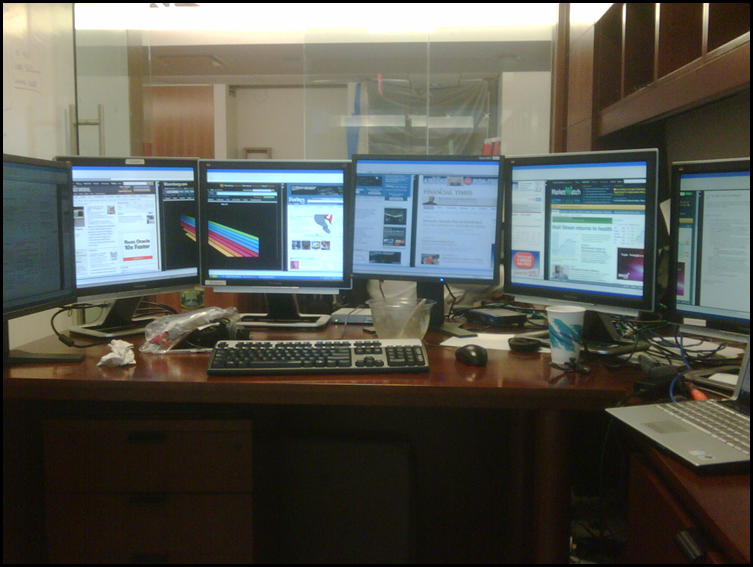
XenDesktop session running across 6 monitors! Is there nothing that XenDesktop can’t do?! Throw in a GPU and watch out!

image